

Google Ads Manager account setup involves creating a manager account, often called an MCC or My Client Center, then linking or inviting individual Google Ads accounts so all of them can be controlled from a single login instead of juggling separate credentials for every client or campaign. At Skillsheaven, a properly configured Google Ads Manager account is one of the very first things we put in place for every paid search engagement, since it allows our team to manage multiple campaigns, control user access and run consolidated reporting without constantly switching between logins. Whether you are an agency managing several clients or a business owner overseeing more than one account, getting your Google Ads Manager account setup right from the beginning saves considerable time and prevents access problems from piling up later.
What Is Google Ads Manager
A Google Ads manager account functions as an umbrella account that sits above your individual Google Ads accounts, allowing you to view, manage and report on multiple accounts from one central dashboard rather than logging in and out of each one separately. It does not run any campaigns directly. Instead, it works purely as a control and consolidation layer that sits on top of the standard advertising accounts where your actual ads actually live and spend budget.
This account type was originally called My Client Center, and plenty of people still refer to it as MCC even though Google now labels it as a manager account throughout the interface. It is effectively required for agencies, freelancers and any business managing more than one Google Ads account, since it eliminates the need for separate email logins for every client relationship or individual campaign.
What Is Google Ad Manager
It is worth pausing here to clear up a common point of confusion. Google Ad Manager, written without the s in Ads, refers to a different product entirely. A Google Ads manager account is built for advertisers who want to manage and run paid search and display campaigns across several accounts at once, while Google Ad Manager is a publisher side platform used by website owners and app publishers to organize, sell and serve advertising inventory on their own digital properties.
Put simply, a Google Ads manager account belongs to the side of the table buying and managing ad campaigns, while Google Ad Manager belongs to the side selling advertising space. Most people searching for Google Ads manager account setup are referring to the advertiser side MCC structure, which remains the focus of the rest of this guide.
Why a Manager Account Becomes Necessary
A manager account becomes necessary the moment you are responsible for more than one Google Ads account, though the benefits extend well beyond simple login convenience.
- Single login access across every linked account, removing the need to remember separate credentials for each one
- Centralized billing options across linked accounts where applicable for your setup
- Account level scripts and automated rules that can run across multiple linked accounts simultaneously
- Shared resources, such as negative keyword lists, that apply across several accounts at once
- Consolidated reporting that allows direct performance comparison across accounts without exporting and combining data manually
- Structured permission management, so different team members or clients can be granted access levels appropriate to their actual role
For agencies in particular, this structure is not optional, it is simply how efficient multi account management gets done at scale, especially once client counts move beyond a handful.
Google Ads Manager Account Setup Step by Step
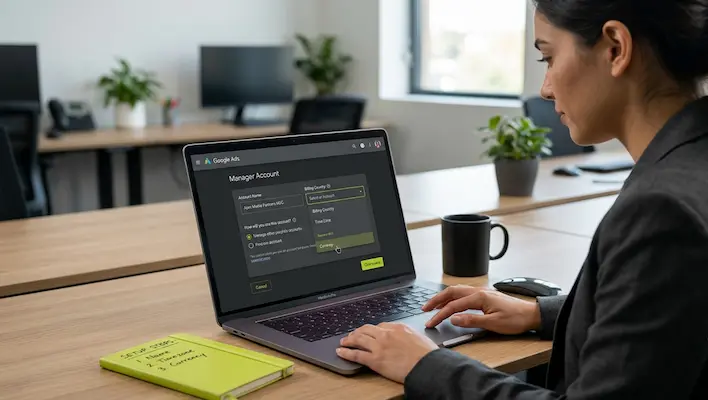
Completing your Google Ads manager account setup follows a fairly direct process within Google’s own interface.
- Visit the Google Ads manager account homepage and select the option to create a manager account
- Sign in using whichever email address you want permanently associated with this new manager account
- Enter a name for your manager account, since this is exactly what your clients will see when viewing their linked account
- Indicate how you plan to use the account, either to manage your own Google Ads accounts directly or to manage accounts belonging to other people or businesses
- Select your country and time zone carefully, since the time zone cannot be changed later and will be permanently used for both reporting and billing
- Choose a permanent currency for the account, since this also cannot be modified once it has been set
- Review every detail entered, then finish creating the account
Once your manager account is active, you can begin linking already existing accounts or creating entirely new ones directly from within it, depending on what your specific setup requires.
Linking Existing Accounts or Creating New Ones
After completing your Google Ads manager account setup, the next logical step is populating it with the accounts you intend to manage going forward.
To link an existing account:
- Sign in to your manager account and open Sub-account settings under the Accounts icon
- Select the option to link an existing account rather than create a new one
- Enter the Google Ads customer ID for the account you want to link, entering one per line if linking several at once
- Send the link request, which the existing account owner will need to approve before the connection becomes active
To create a brand new account directly from your manager account:
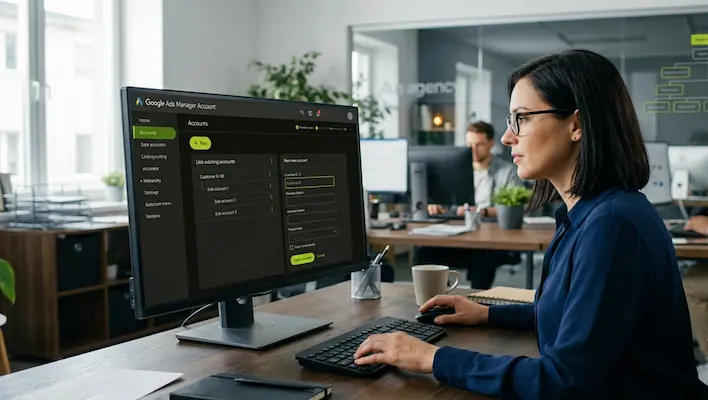
- Click the plus button on the accounts page and select the option to create a new account
- Add basic business details, including the business name and website URL
- Complete the account and billing setup process for that new account
- Invite at least one user with administrative access, since an account created this way begins with no direct users until someone is formally invited
It is also worth noting that a manager account can include other manager accounts nested beneath it, creating a broader hierarchy. This structure becomes particularly useful for larger agencies where multiple team leads each manage their own sub manager account independently.
How to Add Someone to Google Ads Manager
Adding new users to your manager account is essential for team collaboration and ongoing client communication, and the process itself is straightforward once you know exactly where to look.
- Sign in to your Google Ads manager account
- Open the Admin menu and select Access and security
- Click the plus button located under the Users tab
- Enter the new user’s email address
- Choose their appropriate access level, typically Admin, Standard or Read only
- Send the invitation to complete the process
The invited user will receive an email invitation and will need to accept it using their own Google account before access becomes active on their end. A few important access level details are worth keeping in mind here:
- Admin access grants full control, including the ability to manage other users within the account
- Standard access permits campaign management but not user management privileges
- Read only access allows viewing campaigns and reports without making any changes to live data
- You can only grant access levels up to your own level, meaning a Standard user cannot promote someone else to Admin status
Reviewing user access periodically, and removing anyone who no longer genuinely needs it, is a simple habit worth building, since unused access on a manager account quietly increases security risk over time without adding any real value.

Security Practices Worth Building Into Your Setup
Because a manager account often controls access to multiple linked accounts simultaneously, it represents a single point of failure if it is ever compromised. A few consistent habits significantly reduce that risk.
- Enable two factor authentication on whichever account is used for your manager login
- Default to Read only access for anyone who only needs to view performance rather than make changes
- Audit user permissions on a regular schedule, removing access for team members or clients who are no longer active
- Keep your recovery email current and accurate, since it is often the only practical way to regain access if you are ever locked out unexpectedly
These habits matter just as much as the initial Google Ads manager account setup itself, since an unmanaged manager account can quietly become a liability the longer it goes unreviewed.
How to Protect Your Brand in Google Ads
Once your Google Ads manager account setup is complete and campaigns are actively running, protecting your brand becomes an ongoing responsibility, particularly around branded search terms that competitors may attempt to bid on. According to Google’s advertising policy, other advertisers, including direct competitors, are generally permitted to bid on your brand name as a keyword, even if that name happens to be trademarked. What is restricted is using your trademark directly within someone else’s ad text without explicit permission, or creating ads that mislead users into believing there is some official relationship with your business that does not actually exist.
A few practical steps consistently help protect your brand within the Google Ads ecosystem:
- Register your trademark with Google through its formal trademark policy process, since this gives you clear legal grounds to file complaints if your trademark ever appears directly within a competitor’s ad copy
- Run your own branded search campaigns, ensuring your official ad consistently appears whenever people search your business name, rather than relying solely on organic listings to capture that traffic
- Monitor your branded search terms regularly, checking exactly what ads appear whenever someone searches your business name or close variations of it
- Use brand monitoring tools that track competitor activity around your branded keywords on an ongoing basis rather than checking sporadically
- File a trademark complaint with Google whenever you find your trademark used directly within another advertiser’s ad text, supported by clear screenshots and documentation
- Educate resellers and affiliates on acceptable use of your brand name to prevent unintentional misuse that could still affect your own campaign performance
Brand protection tends to work best as a routine, recurring check rather than a one time setup task, since competitor activity around branded terms often shifts over time, particularly as your business grows more visible and attracts greater attention.

Common Mistakes to Avoid During Setup
A few avoidable mistakes tend to cause unnecessary headaches later, often well after the initial Google Ads manager account setup has been completed.
- Choosing the wrong time zone or currency without realizing these settings are permanent
- Granting Admin access by default instead of matching access levels to actual role and need
- Failing to document which linked accounts belong to which client, especially as the number of accounts grows
- Neglecting to remove access for former employees or past clients after a working relationship ends
- Overlooking the manager account entirely when reviewing overall account security, since attention often focuses only on individual ad accounts
Avoiding these issues from the outset keeps your account structure clean and manageable as your advertising operation grows in scale and complexity.
Final Thoughts
A properly completed Google Ads manager account setup gives you the structural foundation needed to manage one account or dozens efficiently, control exactly who has access to what, and keep reporting organized in a single, centralized place. Pairing that setup with consistent security habits and an active, ongoing approach to brand protection ensures your account structure supports growth rather than quietly becoming a vulnerability over time. At Skillsheaven, this foundation gets built into every paid search engagement from day one, so client accounts stay organized, secure and properly defended from the very first campaign onward.
FAQs
Do I need a manager account if I only manage one Google Ads account?
No, a manager account is specifically designed for managing more than one Google Ads account. If you only manage a single account, you can simply sign in directly without needing this additional layer.
Can a manager account run its own ad campaigns?
No, a Google Ads manager account does not run campaigns directly itself. It only manages and reports on the individual accounts linked beneath it.
How many accounts can I link to one manager account?
The number of accounts you can link depends on your account spending history, and once you reach that limit, you can create a second manager account and link it to the first to form a broader hierarchy.
What happens if someone uses my trademark in their Google Ads?
If your trademark appears directly within another advertiser’s ad text without permission, you can file a formal trademark complaint with Google, supported by screenshots and your trademark registration details.
Is it illegal for competitors to bid on my brand name as a keyword?
No, bidding on a brand name as a keyword is generally allowed under Google’s advertising policy and is not automatically considered trademark infringement, though using the actual trademark within the ad text itself without permission remains restricted.

Atif Khan is a highly experienced Local SEO Expert and Strategic SEO Consultant who helps businesses turn their websites into powerful lead-generating assets. With hands-on experience optimizing and ranking over 100 websites across competitive industries, he specializes in building data-driven SEO systems that improve local search visibility, attract qualified traffic, and convert visitors into customers. His expertise spans Google Business Profile optimization, technical SEO, keyword research, content strategy, and conversion-focused website optimization, ensuring every project is aligned with measurable business outcomes. Atif focuses on creating complete local search ecosystems, combining website authority, relevance, and trust signals to help businesses dominate in their target locations. Beyond rankings, he develops scalable growth strategies that drive calls, inquiries, and long-term revenue. His approach is rooted in ethical, white-hat SEO practices, continuous optimization, and performance tracking, ensuring sustainable results. As a consultant, he works closely with businesses and agencies to align SEO with revenue goals, improve digital presence, and build long-term organic acquisition systems.