A proper Google Ads campaign setup is the foundation of every successful paid search strategy, and getting it right from the beginning determines whether your advertising budget produces real business results or quietly drains away without return. Google Ads reaches over 90 percent of internet users through search and display placements, processes more than 8.5 billion searches every day, and delivers an average return of two dollars for every one dollar spent when campaigns are structured and managed correctly.
Whether you are a business owner running ads for the first time or a marketing professional looking to sharpen your process, this guide walks you through every step of how to set up a Google Ads campaign, how to run it effectively, how to troubleshoot common issues, and how to manage your campaigns with confidence.
What Is Google Ads and why does it deliver results
Google Ads is Google’s online advertising platform that allows businesses to display paid ads across Google Search, Google Maps, YouTube, Gmail, and millions of partner websites within the Google Display Network. It operates on a pay-per-click model, meaning you only pay when someone actively clicks your ad rather than simply viewing it. This intent-based advertising model is one of the reasons Google Ads consistently delivers higher conversion rates than most other digital advertising channels. When someone searches for “emergency plumber near me” or “best running shoes online,” they are actively looking for a solution right now, and your ad can appear at precisely that moment of purchase intent.
The platform gives advertisers complete control over budgets, targeting parameters, ad content, bidding strategies, and geographic reach. You can start with as little as ten to fifteen dollars per day, pause or adjust at any time, and scale your investment based on what the performance data shows is working. Understanding how to advertise in Google Ads starts with understanding this structure and the decisions involved at each level.
How Google Ads Works – The Auction System
Before setting up a Google Ads campaign, it’s important to understand how Google Ads determines when and where your ads appear. Every time someone performs a search, Google runs a real-time ad auction where advertisers compete for ad placement by bidding on relevant keywords.
However, winning the auction is not just about placing the highest bid. Google also considers Quality Score, a rating from one to ten that measures the relevance of your keywords, ad copy, and landing page. A higher Quality Score can help your ads achieve better positions while lowering your cost per click, making your campaigns more cost-effective.
Another key factor is Ad Rank, which determines your ad’s position in search results. Ad Rank is calculated using your bid amount, Quality Score, the expected impact of ad assets, and search context factors such as the user’s location, device, and time of search.
Understanding how Quality Score and Ad Rank work allows you to build more successful campaigns. By organizing tightly themed ad groups, targeting relevant keywords, creating compelling ad copy, using helpful ad assets, and directing users to optimized landing pages, you can improve ad performance, reduce advertising costs, and maximize your return on investment without simply increasing your bids.
Step One: Create Your Google Ads Account
The first step in setting up a Google Ads campaign is creating a Google Ads account at ads.google.com and switching to Expert Mode. Expert Mode provides full access to advanced campaign settings, targeting options, bidding strategies, and other features not available in Smart Campaigns.
After creating your account, connect useful Google services such as Google Analytics for conversion tracking, Google Business Profile for location extensions, and Google Merchant Center if you plan to run Shopping campaigns. Finally, configure your billing information and payment method before launching your ads. Google Ads typically uses automatic payments, and you can also set an account-level spending limit to better control your advertising budget.
Step Two: Set Up Conversion Tracking Before Launch
Setting up conversion tracking before launching your first Google Ads campaign is essential for measuring success. It allows you to track valuable actions such as form submissions, purchases, phone calls, and newsletter signups, helping you identify which keywords and ads generate real business results instead of just clicks.
To set it up, go to Tools and Settings > Conversions in your Google Ads account and create a conversion action that matches your business goals. Install the provided Google Tag or conversion tracking code on your website’s confirmation or thank you page to start recording conversions accurately.
Conversion tracking is especially important if you use automated bidding strategies like Maximize Conversions or Target CPA. These Smart Bidding strategies rely on conversion data to optimize your campaigns, improve performance, and maximize your return on advertising spend.
Step Three: Choose Your Campaign Goal and Campaign Type
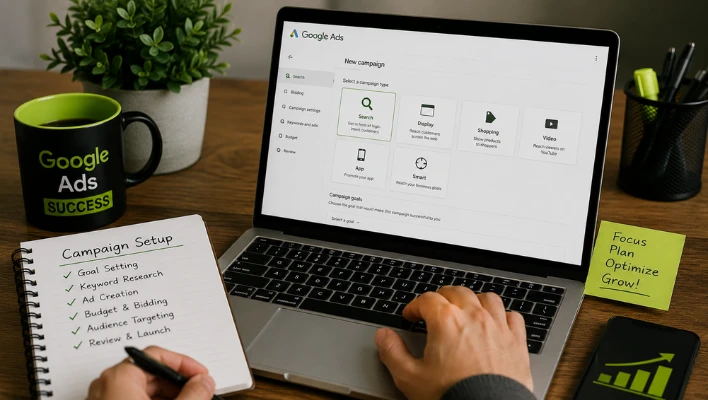
Once your account and conversion tracking are ready, you can create your first Google Ads campaign by clicking New Campaign and selecting a campaign objective that matches your business goals, such as Sales, Leads, Website Traffic, Brand Awareness, App Promotion, or Local Store Visits. Your chosen objective influences Google’s campaign recommendations and bidding strategies.
Next, select the campaign type that best fits your advertising goals.
Search campaigns display text ads to users actively searching for your products or services, making them ideal for lead generation and high-intent traffic.
Display campaigns use image and banner ads across the Google Display Network to increase brand awareness and retarget previous visitors.
Shopping campaigns showcase products with images and prices in search results, making them perfect for e-commerce businesses.
Video campaigns run ads on YouTube and other video platforms to improve brand visibility and audience engagement.
Performance Max campaigns use Google’s AI to promote your business across Search, Display, YouTube, Gmail, Maps, and Discover from a single campaign.
For businesses launching their first Google Ads campaign, a Search campaign is typically the best starting point because it targets users with strong purchase intent and delivers measurable results for leads, sales, and website traffic.
Step Four: Configure Your Campaign Settings
After choosing your campaign type, configure your campaign settings carefully, as they directly affect who sees your ads and how your budget is spent.
For Search campaigns, it is generally recommended to disable Search Network partners and the Display Network when launching your first campaign. This keeps your targeting focused on Google Search, making it easier to analyze performance and optimize your campaign before expanding to additional networks.
Next, set your location targeting to the areas where you want to reach potential customers. You can target countries, cities, ZIP codes, or a radius around your business. Local businesses should use precise location or radius targeting and select the Presence option so ads are shown only to users who are physically located within the service area, helping reduce wasted ad spend.
Choose the appropriate language targeting based on the languages your audience speaks. Most businesses only need English, but you can include additional languages if you serve multilingual customers.
Finally, configure your ad schedule. By default, Google displays ads all day, every day. If your business operates during specific hours or you only want to receive leads when your team is available, schedule your ads to run during those times to maximize budget efficiency and improve lead quality.
Step Five: Set Your Budget and Choose a Bidding Strategy
Your daily budget and bidding strategy play a key role in determining how often your ads appear and how your advertising budget is used. Set a daily budget that aligns with your marketing goals and budget. While Google may spend more than your daily limit on high traffic days, it balances spending over the month to stay within your overall budget. For most beginners, starting with a modest daily budget provides enough data to evaluate campaign performance before increasing spending.
Next, choose a bidding strategy based on your campaign objectives. New advertisers often benefit from Maximize Clicks, which drives as much traffic as possible while collecting valuable performance data. Once your campaign has generated enough conversions, switching to Maximize Conversions or Target CPA helps Google optimize for leads or sales using machine learning. Businesses that prefer greater control can use Manual CPC, while Target ROAS is an excellent option for e-commerce campaigns focused on maximizing revenue and return on ad spend.
Step Six: Build Your Ad Groups and Research Keywords
An ad group organizes your Google Ads campaign by grouping closely related keywords with highly relevant ads. Creating tightly themed ad groups helps improve Quality Score, ad relevance, click-through rates, and conversions because each ad matches the specific intent behind a user’s search.
Effective keyword research is essential for campaign success. Use Google Keyword Planner to discover relevant keywords, analyze search volume, and estimate bidding costs. Organize keywords around specific products or services instead of combining unrelated terms into a single ad group.
Google Ads offers three primary keyword match types. Broad match reaches the widest audience but may trigger less relevant searches. Phrase match provides a balance between reach and relevance by targeting searches that include the meaning of your keyword phrase. Exact match offers the highest level of control by showing ads only for searches that closely match your selected keyword.
For most campaigns, starting with phrase match and exact match keywords provides the best balance between traffic quality and reach. If you use broad match, monitor performance closely to prevent irrelevant clicks.
Equally important are negative keywords, which prevent your ads from appearing for irrelevant or low-intent searches. Regularly reviewing your Search Terms Report and adding unwanted search queries as negative keywords helps eliminate wasted ad spend, improve targeting, and increase your campaign’s overall efficiency.
Step Seven: Write Compelling Responsive Search Ads
Responsive Search Ads (RSAs) are Google’s standard ad format for Search campaigns. They allow you to create multiple headlines and descriptions, which Google automatically combines and tests to determine the best-performing combinations for different users and search queries.
To create effective RSAs, write unique, keyword-focused headlines that highlight your services, key benefits, competitive advantages, customer trust, and clear calls to action. Including your primary keyword in multiple headlines improves ad relevance and increases the chances of matching user searches.
Your descriptions should expand on the value of your offer, answer common customer concerns, emphasize why users should choose your business, and finish with a strong call to action that encourages clicks or conversions.
Google also provides an Ad Strength score, which measures the quality and variety of your ad assets. While it does not directly affect Quality Score, achieving a Good or Excellent Ad Strength gives Google’s system more options to optimize your ads, improving click-through rates and overall campaign performance over time.
Step Eight: Add Assets to Strengthen Your Ads
Google Ads assets, previously known as ad extensions, add extra information to your search ads, making them more informative, increasing their visibility, and improving click-through rates without any additional cost. They also give users more ways to interact with your business directly from the search results.
Some of the most valuable asset types include Sitelink assets, which direct users to important pages such as services or contact pages, Callout assets that highlight key benefits like free estimates or same-day service, Call assets that allow customers to call your business directly, and Location assets that display your address and map for local searches.
You can also use Price assets to showcase products or services with their pricing and Structured Snippet assets to highlight specific offerings such as services, brands, or amenities. Adding all relevant assets to your campaign gives Google more opportunities to display the most useful information, improving ad performance, user experience, and conversion potential. Contact us now for the best SEO services.
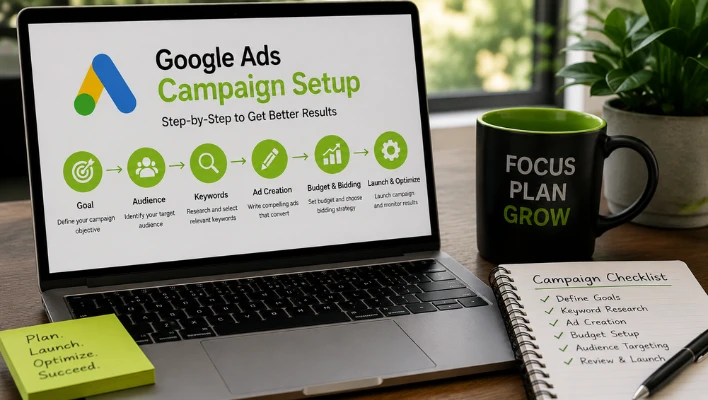
How to Check If Your Google Ads Are Running
Once your campaign is live, knowing how to confirm your ads are actually serving is an important skill. Many new advertisers make the mistake of searching for their own keywords on Google to check if their ads appear. This approach is unreliable and counterproductive. Repeated searches without clicking inflate your impression count, reduce your click-through rate, and can affect how Google’s system serves your ads over time.
The correct way to check if your Google Ads are running is to use the Ad Preview and Diagnosis Tool, which is accessible from the Tools and Settings menu in your account. This tool simulates a search from any location and device you specify without triggering actual impressions or affecting your campaign data. It shows exactly how your ad would appear in search results for a given keyword and alerts you if your ad is not showing and the reason why.
In your Campaigns overview, check the status column next to each campaign, ad group, and ad. A green dot indicates the element is active and eligible to show. A blue pause icon indicates it has been manually paused. A grey dot indicates it has been removed. If a campaign shows as enabled but ads are not delivering, the status column on the Ads page will provide a specific reason, which might include “Under Review,” “Disapproved,” “Limited by Budget,” or “Below First Page Bid.”
Related Topic: How to Spy on Competitors Google Ads
Why Your Google Ad May Not Show Up
Several conditions can prevent your ads from appearing even when your campaign appears active. Understanding these common situations helps you resolve them quickly and restore delivery.
Budget exhausted. If your daily budget is consumed early in the day, your ads stop showing until the following day. If this happens consistently, your budget is too low for the level of competition and search volume in your campaign. Increasing your daily budget or narrowing your targeting to focus on your highest-value keywords and locations resolves this.
Ad under review. New ads and edited ads enter Google’s review process before they are eligible to show. Most reviews are complete within one business day, though complex industries or sensitive content categories may take longer. Check the status column on your Ads page. If the status shows “Under Review,” wait for the review to complete.
Disapproved ads. If your ad violates Google’s advertising policies, it will be disapproved and will not run. Common reasons include prohibited content, trademark violations, misleading claims, or destination page issues. The policy details column in your Ads table provides specific information about why an ad was disapproved and what changes are needed to gain approval.
Below minimum bid. If your maximum CPC bid is set lower than the minimum bid required to show in a particular position, your ads will not appear. Increase your bids or switch to an automated bidding strategy that manages bids dynamically based on auction conditions.
Incorrect location targeting. If your ads are not appearing for searches you expect them to, verify your location settings. Check that your targeting is set to “Presence” rather than “Presence or Interest,” which can serve ads to users outside your target area who have shown interest in that location online.
Negative keyword conflicts. A negative keyword that overlaps with your target keyword will prevent your ad from showing for that search. Review your negative keyword lists at both the campaign and ad group levels to ensure you have not accidentally blocked your own ads.
Paused elements. A campaign can be set to be enabled at the campaign level but still have individual ad groups or ads within it that are paused. Your ads will not show if the ad group or ad within the campaign is paused, even when the campaign itself is active. Check all three levels: campaign, ad group, and ad.
Why Google Ads Might Not Be Working for You
There is an important distinction between ads that are not showing at all and ads that are showing but not producing results. If your ads are receiving impressions and clicks but not generating leads or sales, the issue is different from a delivery problem.
Weak landing page alignment. The most common reason clicks do not convert is a mismatch between what the ad promises and what the landing page delivers. If your ad headline promises “Free Roof Inspection in Dallas” but clicks land on your homepage with no mention of that offer, visitors leave without converting. Each ad group should direct traffic to a landing page that specifically addresses the service, offer, or message the ad communicated.
Keyword intent mismatch. Broad keywords attract a wide range of searchers with very different levels of purchase intent. Someone searching “what is SEO” is in research mode, not buying mode. Targeting high-intent, specific keywords like “SEO agency in Phoenix” or “hire SEO consultant” brings traffic that is further along the decision process and more likely to convert.
Insufficient budget for competition. In competitive industries, a very low daily budget can result in your ads showing infrequently or only for lower-competition, lower-intent searches. If your campaign is consistently flagged as “Limited by Budget” in the status column, increasing your budget allows your ads to compete more consistently for the searches that matter.
Slow or poor-quality landing page. Google measures landing page experience as part of Quality Score, and users abandon pages that load slowly. If your landing page takes more than three seconds to load, a significant portion of the clicks you are paying for will leave before the page even fully renders. Use Google’s PageSpeed Insights tool to assess and improve your landing page loading speed.
How to Pause Google Ads
Knowing how to pause Google Ads is useful when you need to temporarily stop spending without losing your campaign structure and settings. Pausing is different from removing. A paused campaign retains all its settings, ad groups, keywords, and ads, and can be reactivated at any time.
To pause a campaign, sign in to your Google Ads account and navigate to the Campaigns page from the left-hand menu. Find the campaign you want to pause and click the green status circle next to its name. Select Pause from the dropdown menu. The status circle will change to a blue pause icon, confirming the campaign is paused. Repeat this process for individual ad groups or ads within a campaign if you want to pause specific elements rather than the entire campaign.
To resume a paused campaign, follow the same process and select Enable from the status dropdown. Keep in mind that if you had also paused individual ad groups or ads within the campaign, those elements do not automatically resume when you enable the campaign. You must manually enable each paused element at its respective level before ads within it will begin showing again. Skills Heaven provides professional google ads management in Dubai and nearby areas.
How to Cancel a Google Ads Campaign
It is important to understand the difference between pausing and canceling, or removing, a Google Ads campaign. Pausing stops your ads temporarily while preserving everything for future use. Removing a campaign is permanent. You cannot restore a removed campaign, though you can still view its historical performance data.
To cancel or remove a Google Ads campaign, go to your Campaigns page, click the checkbox next to the campaign name, and select Remove from the Edit dropdown menu. Confirm the action when prompted. The campaign will no longer appear in your default view, but remains accessible by filtering for removed campaigns if you need to reference historical data.
If you want to run a similar campaign in the future, do not remove your current one. Instead, pause it and use the duplicate function to create a copy when you are ready to relaunch.
How to Duplicate a Campaign in Google Ads
Duplicating a campaign in Google Ads allows you to copy an existing campaign’s structure, settings, ad groups, keywords, and ads into a new campaign that you can then modify without affecting the original. This is useful for testing different settings against each other, launching seasonal variations of an existing campaign, or expanding your strategy to new locations with the same structure.
To duplicate a campaign, navigate to your Campaigns page and check the box next to the campaign you want to copy. Click the Edit dropdown menu and select Copy. Then click Paste from the same Edit menu to create a duplicate. The pasted campaign will appear as a copy with the word “Copy” added to its name and will initially be paused, giving you the opportunity to update any settings before activating it.
Alternatively, Google Ads Editor, the free desktop application for managing Google Ads accounts at scale, offers more advanced copy-and-paste functionality that makes duplicating and modifying large volumes of campaign elements faster and more efficient.
Related: How To Optimize Google Ads Performance
How Long Does It Take for Google Ads to Work
One of the most common questions from businesses new to paid search is how long it takes before Google Ads produces measurable results. The honest answer is that you will see data almost immediately after launch, but meaningful optimization and consistent results typically develop over a longer period.
Within the first 24 to 48 hours of a campaign going live, your ads will begin collecting impressions and click data as they pass through Google’s review process. However, Google’s Smart Bidding algorithms enter what is called a learning period during which they are gathering data and adjusting delivery. During this learning phase, which typically lasts one to two weeks, performance can be inconsistent. Avoid making significant changes to your campaign during the learning phase because each substantial change can reset the learning period and delay the algorithm’s ability to optimize effectively.
For most campaigns, the first two to four weeks should be treated as a data collection phase. After accumulating at least several hundred clicks and ideally thirty to fifty conversion events, you will have enough information to make data-driven decisions about which keywords, ads, and targeting settings are delivering value and which need adjustment.
For competitive industries with high cost-per-click rates, campaigns with smaller budgets may take longer to accumulate sufficient data. For businesses with higher-converting landing pages and well-researched keywords, meaningful results can appear within the first two to three weeks. The key is consistency: keep the campaign running, avoid reactive changes based on short periods of data, and let the system learn before drawing conclusions.
How to Run Google Ads Effectively – Ongoing Optimization
Launching a well-structured campaign is the beginning of the process, not the end. The businesses that achieve the strongest returns from Google Ads treat campaign management as an ongoing practice of testing, measuring, and refining based on what the data shows.
Review your Search Terms report weekly. This report, found under Keywords in the left navigation menu, shows the actual search queries that triggered your ads. It is the most important regular review task in campaign management. Every week, identify searches that are irrelevant to your business and add them as negative keywords. Identify searches that are performing well and consider adding them as exact match keywords with dedicated ad copy tailored to that specific query.
Test ad copy continuously. Create multiple RSA versions within each ad group with different headlines and description combinations. After allowing each version enough time to accumulate statistically meaningful data, pause the weaker-performing versions and write new variations to test against your best performer. This process of continuous ad testing progressively improves your click-through rates and conversion rates over time.
Optimize your landing pages. The Quality Score component related to landing page experience directly affects your cost per click and ad position. Pages that load quickly, match the ad’s message closely, provide clear information, and make the next step obvious earn higher landing page experience scores and lower costs. Continuously improving your landing pages is one of the most impactful ways to improve Google Ads performance without increasing your budget.
Monitor Quality Scores. Review the Quality Score for your keywords periodically and focus improvement efforts on your most important keywords with Quality Scores below seven. Improving Quality Score through better keyword-to-ad alignment and landing page experience reduces your cost per click and improves your ad position simultaneously.
Use audience observation. Add audience segments to your Search campaigns in observation mode. Over time, you will see data showing which audiences, such as in-market segments for your service category, convert at higher rates. Apply bid adjustments to increase your visibility for high-converting audiences without restricting who can see your ads.
How to Advertise in Google Ads – Campaign Types for Different Business Goals
Different business goals require different Google Ads campaign types to achieve the best results. For lead generation, Search campaigns targeting high-intent keywords are the most effective, especially when combined with optimized landing pages, call assets, and lead forms that encourage inquiries.
For e-commerce businesses, Shopping campaigns connected to Google Merchant Center display products with images, prices, and ratings directly in search results. Pairing Shopping campaigns with Search campaigns targeting purchase-focused keywords can help capture customers throughout the buying journey.
Businesses focused on brand awareness can use Display and Video campaigns to reach potential customers before they begin actively searching. These campaign types are also highly effective for remarketing, allowing you to reconnect with visitors who previously interacted with your website.
For advertisers with sufficient conversion data, Performance Max campaigns use Google’s AI to optimize ads across Search, Display, YouTube, Gmail, Maps, and Discover, helping maximize conversions and reach customers across multiple Google platforms from a single campaign.
Is Google Ads Down – How to Check Platform Status
Occasionally, advertisers notice sudden drops in impressions, clicks, or conversions that seem unrelated to any changes they made. Before beginning a complex troubleshooting process, checking whether Google’s advertising platform is experiencing any technical issues is a reasonable first step.
Google maintains a public status dashboard at ads.google.com/status that provides real-time information about service disruptions or incidents affecting the Google Ads platform, Google Tag Manager, and related services. If a widespread issue is impacting ad delivery, it will appear on this dashboard along with information about the scope and estimated resolution timeline.
For issues affecting your specific account rather than the platform broadly, the Diagnostic Insights tab within your campaign dashboard identifies account-specific issues that may be limiting your campaign’s ability to serve, with recommendations for resolving each one. Google Ads Support is also available through the help icon in the top right corner of your account interface and can investigate account-specific issues that you cannot resolve through standard troubleshooting.
Final Thoughts – Making the Most of Your Google Ads Campaign Setup
A successful Google Ads campaign setup begins with a well-planned strategy and continues through regular optimization. Businesses that achieve consistent results focus on creating organized campaigns, targeting the right audience, tracking conversions, and continuously improving performance based on real data rather than guesswork.
To maximize results, start with clear advertising goals, choose the campaign type that aligns with those goals, organize tightly themed ad groups, target relevant keywords, and create compelling ads that match user search intent. Direct visitors to high-quality, optimized landing pages that deliver on your ad’s promise and encourage conversions.
Google Ads performs best when your keywords, ad copy, landing pages, and conversion tracking work together seamlessly. This alignment improves Quality Score, increases ad relevance, lowers cost per click, boosts ad positions, and generates more qualified leads and sales. By monitoring campaign performance regularly and making data-driven adjustments, you can improve return on investment, reduce wasted ad spend, and turn Google Ads into a reliable, long-term growth channel for your business.
Frequently Asked Questions About Google Ads Campaign Setup
Q1. How do I set up a Google Ads campaign for the first time?
Create a Google Ads account, switch to Expert Mode, set up conversion tracking, choose your campaign type, configure targeting and budget, add relevant keywords, create responsive ads, include ad assets, and launch your campaign.
Q2. How long does it take for Google Ads to work after launch?
Google Ads usually starts collecting data within 24 to 48 hours after approval. Most campaigns require two to four weeks of optimization before delivering consistent and reliable results.
Q3. How do I check if my Google Ads are running?
Use the Ad Preview and Diagnosis Tool to verify your ads without affecting performance. You can also check the campaign and ad status in your Google Ads dashboard to see if they are active, under review, or disapproved.
Q4. Why does my Google ad not show up?
Your ad may not appear due to budget limits, ads under review, disapproved content, low bids, incorrect targeting, conflicting negative keywords, or paused campaigns. Review your campaign diagnostics to identify the issue.
Q5. How do I pause Google Ads without losing my campaign settings?
Pause your campaign from the Campaigns page by changing its status to Paused. This keeps all your settings, keywords, and ads intact, allowing you to resume the campaign at any time.
Q6. How do I duplicate a campaign in Google Ads?
Select the campaign you want to copy, use the Copy and Paste options from the Edit menu, and Google Ads will create a duplicate campaign in paused mode for further customization.
Q7. How do I cancel a Google Ads campaign?
You can permanently remove a campaign from the Campaigns page, but this action cannot be undone. If you may use the campaign again later, pausing it is a better option.
Q8. How much does Google Ads campaign setup cost?
Google Ads has no minimum spending requirement. You choose your own daily budget and pay only when someone clicks your ad, with costs varying based on your industry and competition.

M. Awais Khan is a Business Development and Digital Growth Strategist at SkillsHeaven, specializing in SEO, local search optimization, and performance-driven digital marketing. With experience supporting 100+ businesses, he develops and implements data-driven strategies that help companies increase online visibility, generate qualified leads, and drive sustainable revenue growth. His expertise spans Local SEO, Google Ads, social media marketing, and conversion-focused website optimization, ensuring every project is aligned with measurable business outcomes and long-term success.