

Google ads conversion tracking is the process of recording what a customer does after clicking your ad, such as filling a form, calling your business, or completing a purchase, and sending that data back into your Google Ads account so the platform knows which clicks actually led to results. Once it’s set up correctly, you stop guessing which keywords and campaigns are working and start making decisions based on real outcomes instead of click volume alone.
A surprising number of Google Ads accounts run for months without conversion tracking installed correctly. Clicks and impressions look fine on the surface, but nobody can say which ad actually produced a lead or a sale. Fixing that gap is usually the single biggest improvement available to an underperforming account, because every bidding decision Google makes afterward depends on this data being accurate.
What Conversion Tracking Actually Does
Conversion tracking is a free measurement feature built into Google Ads, as Google explains here. When a customer completes an action that’s been defined as valuable, a purchase, a form submission, a phone call, a sign up, that action gets logged as a conversion and linked back to the exact ad, keyword, and campaign that drove it.
Without this in place, you can see traffic, but you cannot see results. This becomes especially important once a campaign moves to automated bidding strategies like Target CPA or Maximize Conversions, since these strategies rely entirely on the conversion data they’re fed. Inaccurate or missing data leads directly to inefficient bidding, day after day.
How to Set Up Conversion Tracking in Google Ads Step by Step
Here is the general process for getting conversion tracking running in a Google Ads account.
Step 1: Create a conversion action
Inside the account, go to Goals, then Conversions, then Summary. Click the plus icon and choose the source, website, app, phone calls, or imported data from a CRM or analytics platform.
Step 2: Define what counts as a conversion
Name the action clearly, such as “Contact Form Submission” or “Purchase Completed.” Choose a category, assign a value if the action has a known or average worth, and pick a counting method, either one conversion per click or every conversion per click, depending on whether repeat actions should count separately.
Step 3: Install the tag
Google provides two pieces of code, the Google tag, which goes on every page of the site, and an event snippet, which goes only on the confirmation or thank you page where the conversion actually happens. These can be installed manually, through a website platform, or through Google Tag Manager. Google’s own setup instructions walk through both the codeless and code based options in more detail.
Step 4: Set up conversion actions for each goal
If there’s more than one valuable action, a contact form and a phone call, for example, each one gets its own conversion action and its own label, while all actions share the same account level Conversion ID.
Step 5: Confirm the status
Once the tag goes live, Google Ads displays a status next to each conversion action. It typically takes 24 to 48 hours for the status to move from “Unverified” to “Recording conversions”.

Where to Find Your Conversion ID in Google Ads
One of the most common points of confusion is where to find the Conversion ID in Google Ads. The Conversion ID is an account level number, usually shown with an “AW-” prefix, and it’s shared across every conversion action inside that account. The Conversion Label is different. It’s unique to each individual action, like Purchase or Lead.
To find the Conversion ID in Google Ads:
- Open the Goals icon in the left menu
- Go to Conversions, then Summary
- Click on the specific conversion action
- Open the Tag Setup section
- Select “Use Google Tag Manager” or “Install the tag yourself”
- The Conversion ID and Conversion Label will both be displayed here. Google Tag Manager’s documentation covers how these two values get entered into a Google Ads Conversion Tracking tag.
A frequent mistake is pasting in the 10 digit Customer ID number instead of the Conversion ID, or mixing the label from one conversion action with the ID from a different account. Both break tracking silently, meaning the tag fires but nothing records correctly.

How to Set Up Conversion Actions in Google Ads for Multiple Goals
Most businesses have more than one type of valuable action, so separate conversion actions usually work better than lumping everything into one. An online service, for instance, might track a form completion, a chat click, and a phone call as three distinct actions, each weighted differently based on how closely it connects to actual revenue.
To set up conversion actions properly:
- Group similar actions under the right category, such as Submit Lead Form, Purchase, or Contact
- Assign a realistic value to each action based on average close rate and typical deal size
- Decide whether repeat conversions should count once or every time
- Set a conversion window that matches the typical sales cycle, the default is 30 days, though a longer consideration purchase may need 60 or 90
This level of detail matters because Google’s bidding algorithms chase whatever is marked as a conversion. Tracking page views alongside genuine leads dilutes the data and confuses the bidding system.
How to Test Google Ads Conversion Tracking
Before trusting any conversion data for budget decisions, it needs to be confirmed as accurate. Here’s how to test google ads conversion tracking properly.
Use Google Tag Assistant
Install the Tag Assistant browser extension, open the website, and complete the conversion action manually. The extension shows exactly which tags fired and flags any errors in real time.
Use GTM Preview Mode
If Google Tag Manager is in use, Preview mode shows which tags trigger on each click, page load, or form submission, without publishing anything live.
Complete a real test conversion
Go through the actual action a customer would take, submit the form, click the call button, or complete a test purchase, then check Google Ads under Goals, Conversions within 24 to 48 hours to confirm it appears.
Check the conversion status
The status column should read “Recording conversions.” A status of “Unverified” or “No recent conversions” usually points to a tag on the wrong page or a trigger that never fires.
Cross check with Google Analytics
If the accounts are linked, the GA4 Real Time report should show the same event registering at the same moment it appears in Google Ads.
A handful of mistakes come up repeatedly during audits. Tags get installed on the form page instead of the actual thank you or confirmation page. Page views get counted as conversions instead of meaningful actions. Conversions fire multiple times for a single action because the counting method wasn’t set to one. And conversion values or currency settings get left blank, which limits how well return on ad spend can be judged later.

When Google Analytics and Google Ads Are Linked, What Changes
When Google Analytics and Google Ads are linked, the result is a more complete picture of customer behaviour than either platform shows alone. Linking the two lets GA4 events be imported as conversion actions directly into Google Ads, allows audience lists to be shared between platforms for retargeting, and surfaces Google Ads campaign data inside GA4 alongside full site behaviour, including what a visitor did before and after clicking the ad.
The connection also affects attribution. Once linked, Google Ads can draw on richer behavioural signals from GA4 to support bidding decisions, rather than relying solely on a conversion tag firing in isolation. For any business running both lead generation and ecommerce activity, this combination is often the difference between guessing at the customer journey and actually seeing it.
How to Connect Google Ads to Analytics
The linking process happens from inside the Google Ads interface, not from Analytics itself.
- Sign in to Google Ads and confirm auto-tagging is switched on under Account Settings, since this is required for the link to work
- Go to Tools and Settings, then under Setup, click Linked Accounts
- Find Google Analytics (GA4) in the list and click Details
- Choose the GA4 property to connect and confirm the link
- Inside GA4, go to Admin, then Google Ads Linking, to verify the connection appears on both sides
- Once linked, go to GA4’s Conversions or Events section and import the events to use as conversion actions back inside Google Ads
After linking, it’s worth waiting 24 to 48 hours before judging the data, since both platforms need time to sync and report consistently.
What Is Original Conversion Value in Google Ads
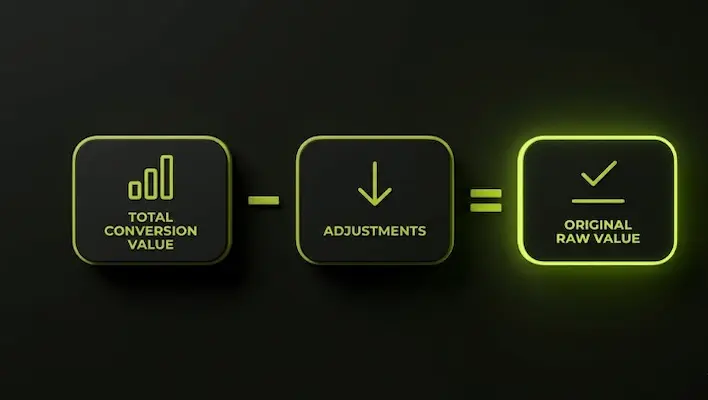
A newer metric appearing in Google Ads reporting is Original Conversion Value, and it matters most for accounts using value rules or lifecycle goals like New Customer Acquisition bonuses. Google’s formula strips back the adjustments: Conversion Value minus rule adjustments minus lifecycle goal adjustments equals Original Conversion Value.
In plain terms, a Google Ads dashboard might show one conversion value number used for reporting and bidding, while Original Conversion Value shows what that conversion was genuinely worth before any rules, audience boosts, or location based multipliers were applied. It strips away value rule multipliers, new customer acquisition bonuses, and lifecycle goal adjustments to show the raw revenue a campaign actually generated.
This matters most for accounts that:
- Use conversion value rules to weight certain audiences or locations higher
- Run New Customer Acquisition bidding goals
- Need to reconcile what Google Ads reports against actual revenue recorded in a CRM or POS system
For accounts that don’t use value adjustments at all, Original Conversion Value and standard Conversion Value will simply match, in which case the column adds little extra insight. But for accounts layering in value rules, comparing the two numbers regularly is a useful way to catch inflated ROAS before it leads to a poor budget decision.
Why Conversion Tracking Setup Fails More Often Than Expected
Conversion tracking has a habit of breaking quietly. A website update, a plugin conflict, or a CMS migration can knock a tag offline without throwing any visible error. Weeks can pass before anyone notices that a portion of conversions simply stopped recording, and by then, budget decisions have already been made on incomplete numbers.
This is why conversion tracking deserves a regular audit rather than a one time setup. Checking that tags are still firing, that conversion actions still reflect real business goals, and that values still match what each action is actually worth, keeps the data trustworthy over time rather than just at launch.
Getting Conversion Tracking Right From the Start
Setting up google ads conversion tracking correctly the first time saves the back and forth of troubleshooting bad data months into a campaign. The technical steps look similar across industries, but which actions actually deserve to be tracked, and what value to assign each one, depends entirely on what genuinely predicts revenue for a specific business.
If an existing Google Ads account has been running without clean conversion tracking, or the data inside it looks questionable, a proper audit of the current setup is usually the right place to start before making any changes to budget or bidding strategy. You can learn more about how this fits into a broader paid search strategy on our Google Ads Management page, or see how paid campaigns connect with on site visibility through our Local SEO Services and Digital Marketing Services pages. For a full overview of our work, visit our homepage.

M. Awais Khan is a Business Development and Digital Growth Strategist at SkillsHeaven, specializing in SEO, local search optimization, and performance-driven digital marketing. With experience supporting 100+ businesses, he develops and implements data-driven strategies that help companies increase online visibility, generate qualified leads, and drive sustainable revenue growth. His expertise spans Local SEO, Google Ads, social media marketing, and conversion-focused website optimization, ensuring every project is aligned with measurable business outcomes and long-term success.