Google Shopping Ads setup starts with creating a Google Merchant Center account, verifying your website, uploading a clean product feed, and linking Merchant Center to Google Ads so your products can appear with their image, title, and price. At Skills Heaven, we offer professional Google Shopping Ads setup and management services across Dubai and the wider UAE, plus clients worldwide, so this guide walks you through the entire process clearly from account creation to your first live campaign.
A correct Google Shopping Ads setup gives your products prime visibility right when shoppers are ready to buy. The workflow has a logical order, and following it in sequence keeps your account healthy and your products approved. Below you will find everything from what Shopping Ads are to feed optimization, written for store owners who want results.
What Are Google Shopping Ads?
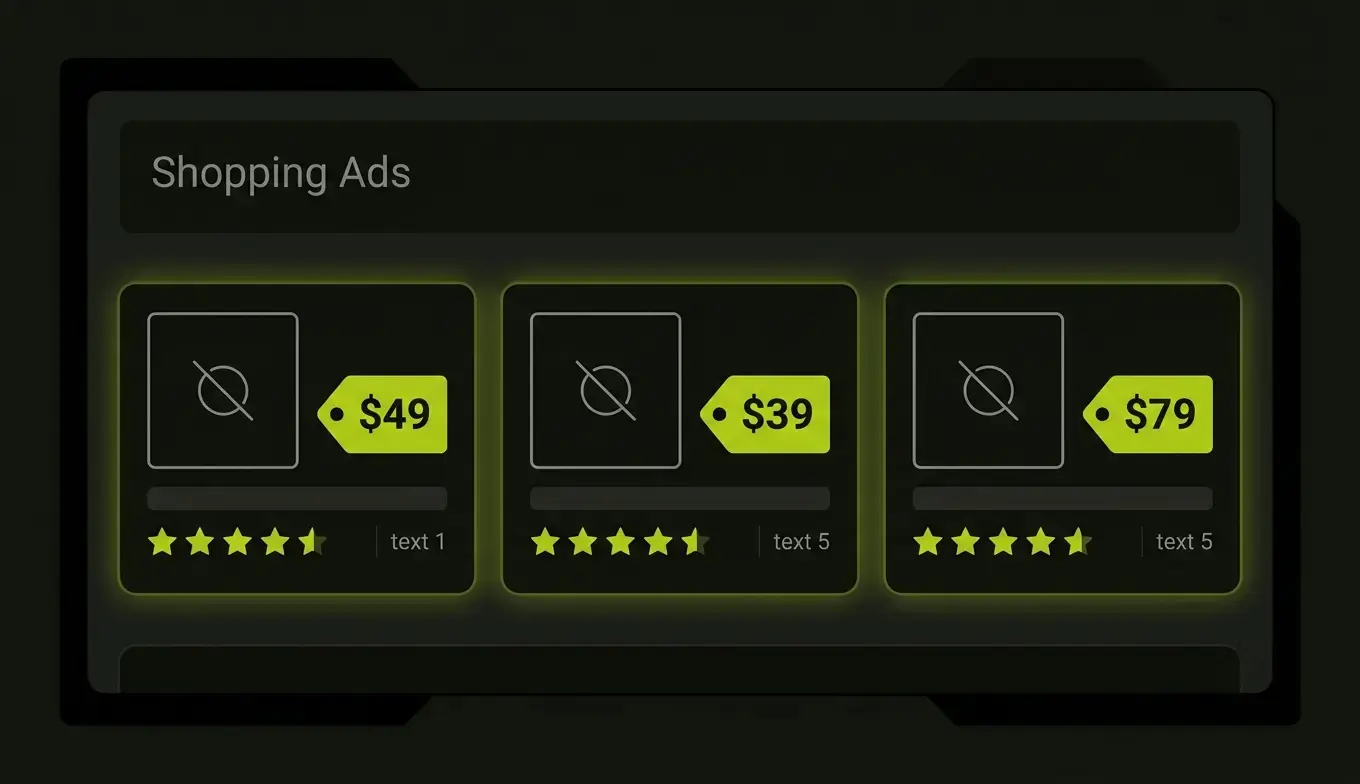
Google Shopping Ads are product based advertisements that display your item’s image, title, price, and store name directly in Google search and the Shopping tab. Rather than relying on keywords the way text ads do, these ads pull information straight from your product feed, so Google matches your products to relevant shopper searches automatically.
This visual, product first format is what makes Shopping Ads so effective. A shopper sees the product, the price, and your brand before they even click, which means the visitors who do click arrive with strong buying intent. That is exactly why so many retailers ask what is Google Shopping Ads and how to get started, since this channel captures high intent traffic better than almost any other.
How Does Google Merchant Center Interact With Google Ads?
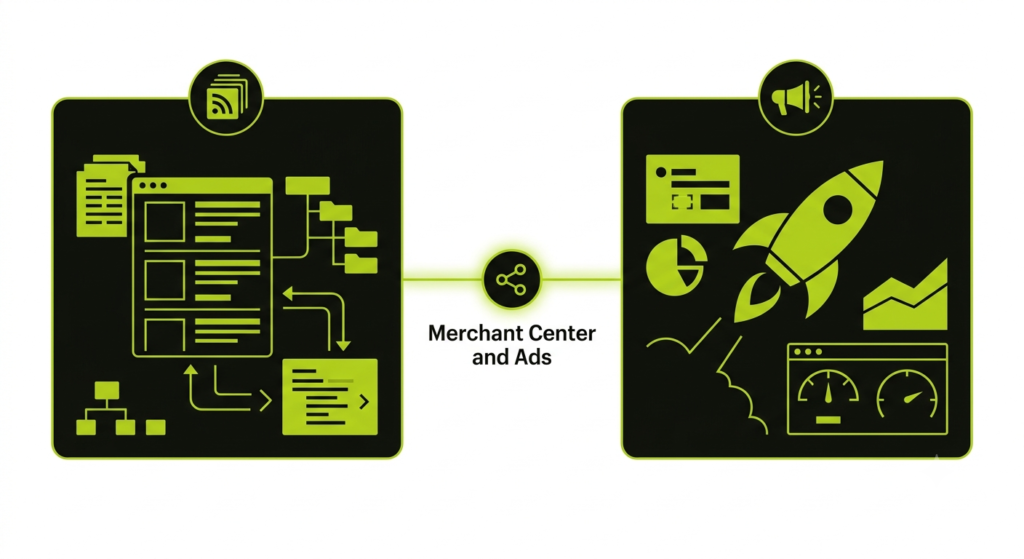
Understanding how Google Merchant Center interacts with Google Ads is the foundation of the whole system. Think of it this way: Merchant Center is the home of your product data, and Google Ads is the engine that promotes it.
Merchant Center stores your product feed, including titles, images, prices, availability, and identifiers. Google Ads then uses that approved product data to build and serve your Shopping campaigns. Neither one works alone for paid Shopping, so the two accounts must be linked. Once connected, your product feed becomes available inside Google Ads, ready to power a Standard Shopping campaign or a Performance Max campaign. This connection is also what lets your bidding optimize toward real revenue, since conversion data flows back into the system.
Google Merchant Center Setup: Step by Step
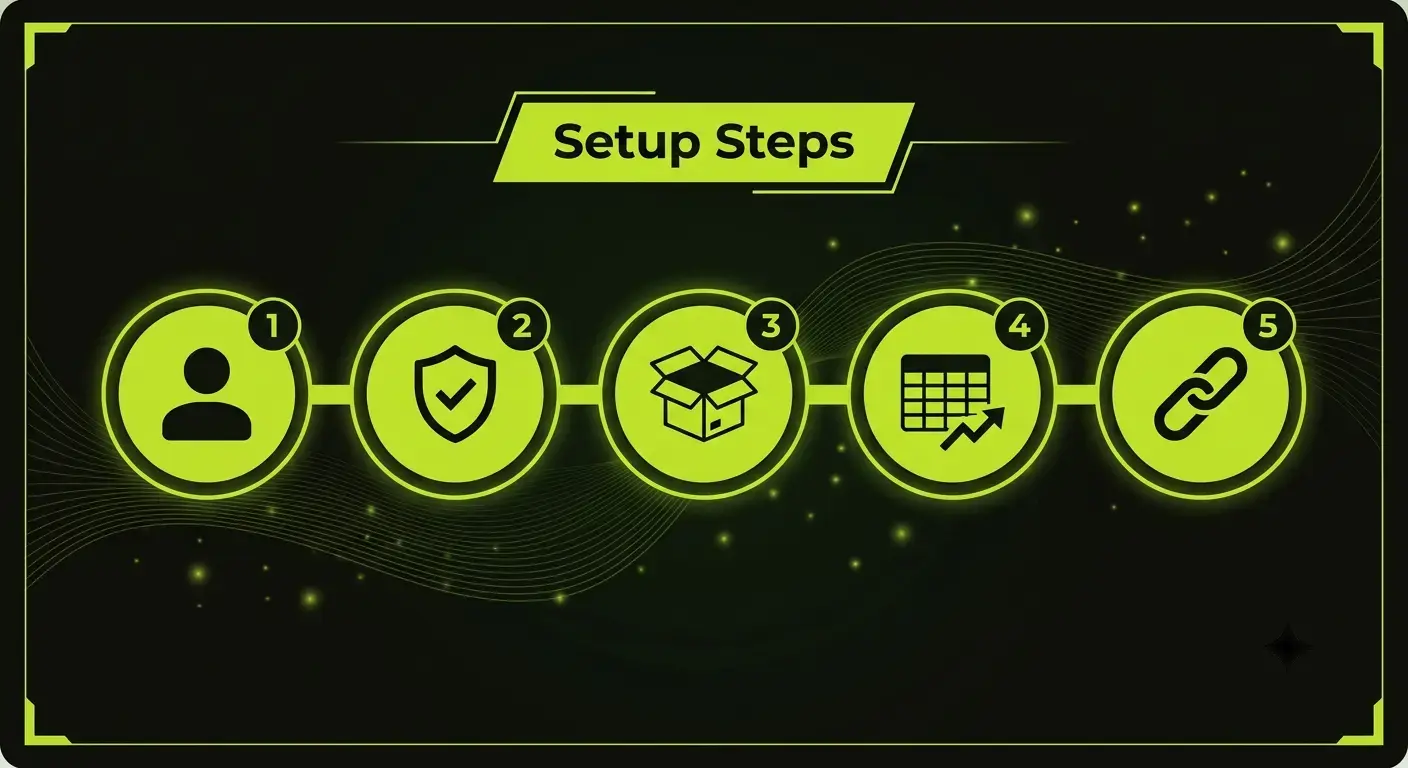
Your Google Merchant Center setup is where everything begins. Follow these steps in order for a smooth approval.
Step 1: Create Your Merchant Center Account
Visit the Google Merchant Center and sign in with a business Google account rather than a personal Gmail, since this account will hold your data long term and may be shared with your team. Enter your business name exactly as it appears on your website, choose your country of registration, and set your time zone to match your reporting period. Consistency between your feed brand name and your website branding matters a great deal here, because matching details support faster approval.
Step 2: Verify and Claim Your Website
Google needs to confirm you own the domain you are selling from. Verification proves ownership, and claiming reserves that verified URL for your account so your products stay consistent. You can verify through an HTML tag, an HTML file upload, your Google Analytics tag, or a Google Tag Manager container. If you already use Tag Manager, that method is often the fastest. After verification succeeds, select claim on the same screen to lock the domain to your account.
Step 3: Configure Shipping and Returns
Accurate shipping settings are essential, since products need valid shipping data to show in Shopping results. Create a shipping service with a clear name, set conservative delivery times based on order to delivery days, and choose your rate structure, whether flat rate, free shipping, or tiered pricing. Add a clear return and refund policy too, including the return window and conditions, and keep it easy to find on your site. For sellers in the United States, Merchant Center simplified tax requirements as of July 1, 2025, which shifts more focus onto shipping accuracy and clear on site policies.
Step 4: Set Up Your Product Feed
Your product feed is the dataset that powers everything. Merchant Center supports several upload methods, so choose the one you can keep accurate every day:
- Google Sheets template: Ideal for beginners and smaller catalogs,
- with periodic syncing.
- File upload: A CSV or XML file, suitable for small to mid sized
- inventories.
- Scheduled fetch: Google retrieves your hosted feed file at set
- intervals.
- Merchant API: Best for large catalogs or frequent price and
- availability updates.
Whichever method you pick, follow Google’s product data specification so each attribute, including title, description, GTIN, price, and image, meets the required structure. Feed quality drives matching, eligibility, and ad prominence, so this step rewards careful attention.
Step 5: Link Merchant Center to Google Ads
With your feed ready, connect the two accounts. In Merchant Center, open settings, then linked accounts, then Google Ads, and send a link request using your ten digit Google Ads customer ID. Then approve that request from inside Google Ads under the data manager. Once linked, your product data becomes available for Shopping and Performance Max campaigns. You can read the official steps on the Google Ads Help center if you want to follow along in the interface.
How to Create Your First Google Shopping Campaign
Now that your accounts are connected, you are ready to launch. In Google Ads, select new campaign and choose an objective such as sales or website traffic. Pick Shopping as the campaign type, then select the Merchant Center account holding your products. From here you can run a Standard Shopping campaign for granular control, or a Performance Max campaign, which is the most common Shopping vehicle in 2026 and serves your products across Search, Shopping, YouTube, Display, and more.
Set your budget and bidding strategy, name your campaign, and create your ad group. The product ads build automatically from your Merchant Center data, so your images, titles, and prices flow straight through. Review the summary, confirm your settings line up, and publish. The official Google Merchant Center Help guide details each campaign field if you want a reference while you set it up.
How to Optimize Google Shopping Ads
Learning how to optimize Google Shopping Ads is what turns an active account into a profitable one. Optimization centers on your feed, your structure, and your data quality. Helpful practices include:
- Refine product titles: Lead with the most searched terms, such as
- brand, product type, and key attributes like size or color, so Google matches your items to the right queries.
- Use high quality images: Clean, accurate product photos lift click
- through rates and shopper confidence.
- Keep prices and availability current: Frequent updates protect
- approval and keep your ads serving smoothly.
- Enable free listings: Turning on free listings lets eligible
- products appear at no cost, adding visibility alongside your paid placements.
- Segment with product groups: Group products by category or
- performance so you can guide budget toward your strongest sellers.
- Track conversions: Accurate conversion tracking lets smart bidding
- optimize toward revenue, which steadily improves returns.
Consistent feed hygiene and clear product data deliver the strongest long term gains, so treat optimization as an ongoing routine rather than a one time task.
Frequently Asked Questions
What is Google Shopping Ads in simple terms? Google Shopping Ads are product based ads that show your item’s image, title, and price in Google search results and the Shopping tab, pulling details directly from your product feed.
Can I run Google Shopping Ads without Merchant Center? No, Merchant Center is required for all Shopping campaigns and free listings, since it holds the product feed that Google Ads uses to serve your ads.
How long does Google Shopping Ads setup take to go live? Initial account review usually takes a couple of business days, and individual product approvals often complete within a few hours of feed submission once your account is approved.
How does Google Merchant Center interact with Google Ads? Merchant Center stores and manages your product data, while Google Ads uses that linked data to create and serve Shopping and Performance Max campaigns.
How do I optimize Google Shopping Ads for better results? Focus on clear product titles, high quality images, accurate pricing, current availability, free listings, and reliable conversion tracking to lift performance over time.
Is Google Merchant Center free to use? Yes, creating and using Merchant Center is free, and you only pay when your Shopping Ads campaigns run in Google Ads.
Final Takeaway
A successful Google Shopping Ads setup follows a clear path: create your Merchant Center account, verify and claim your website, configure shipping and returns, upload a clean product feed, link Merchant Center to Google Ads, and launch your campaign. With the foundation built correctly and your feed kept current, your products gain strong visibility in front of ready to buy shoppers. Follow this Google Shopping Ads setup guide step by step, and you will have a healthy, high performing account that drives steady, profitable growth.

Atif Khan is a highly experienced Local SEO Expert and Strategic SEO Consultant who helps businesses turn their websites into powerful lead-generating assets. With hands-on experience optimizing and ranking over 100 websites across competitive industries, he specializes in building data-driven SEO systems that improve local search visibility, attract qualified traffic, and convert visitors into customers. His expertise spans Google Business Profile optimization, technical SEO, keyword research, content strategy, and conversion-focused website optimization, ensuring every project is aligned with measurable business outcomes. Atif focuses on creating complete local search ecosystems, combining website authority, relevance, and trust signals to help businesses dominate in their target locations. Beyond rankings, he develops scalable growth strategies that drive calls, inquiries, and long-term revenue. His approach is rooted in ethical, white-hat SEO practices, continuous optimization, and performance tracking, ensuring sustainable results. As a consultant, he works closely with businesses and agencies to align SEO with revenue goals, improve digital presence, and build long-term organic acquisition systems.